


CSS Gradient
Linear, radial and conic gradients with smooth OKLCH transitions. Export as CSS, SVG or image.
Open in editorPut your screenshot on a beautiful background or show your website as a mockup on laptop, monitor, tablet and phone. Ready for docs, social media and Product Hunt.
Open the generatorRuns right in your browser. Your graphics are made on your device.
Pick a preset and it opens right in the editor, ready to adjust.
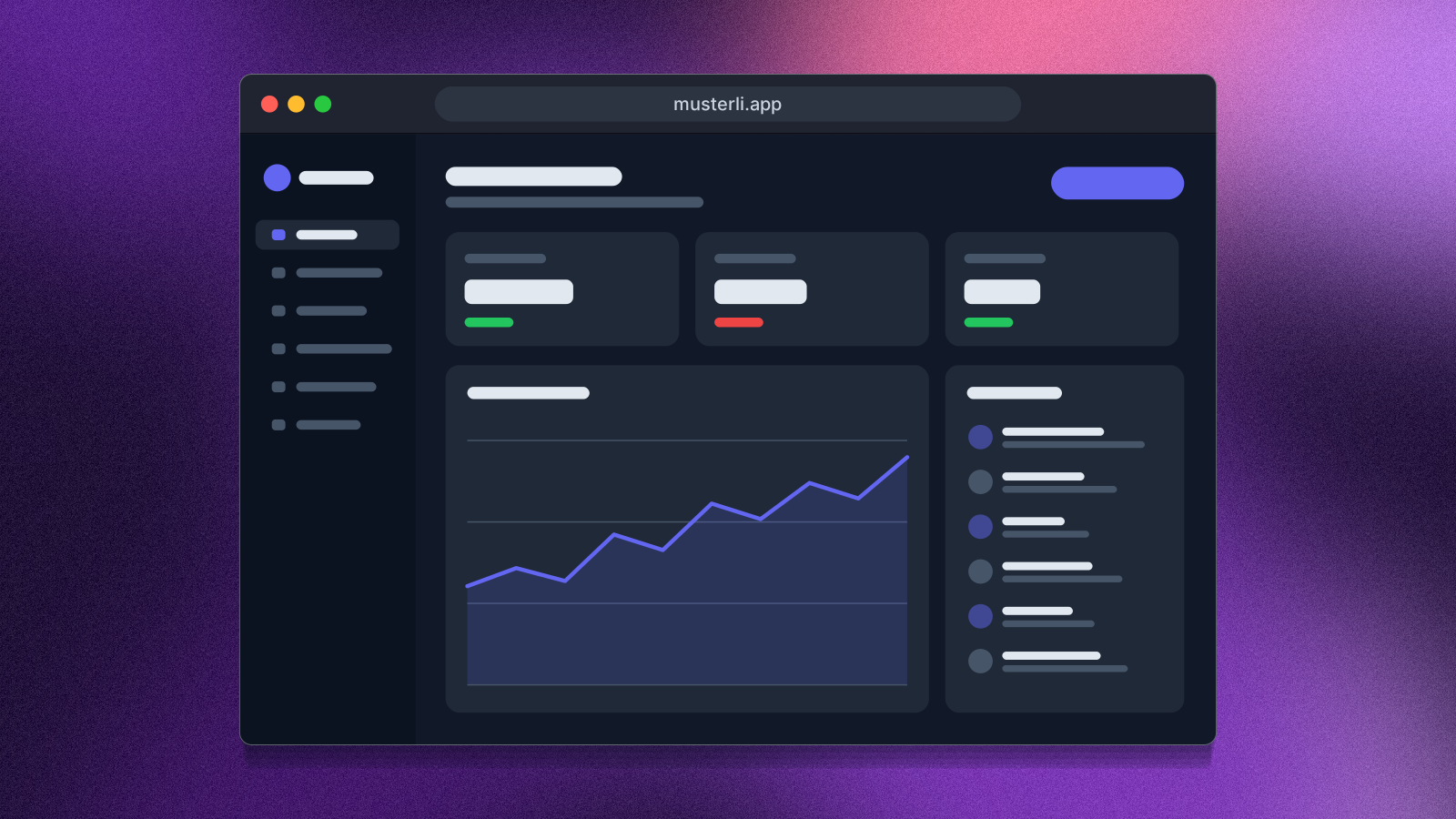
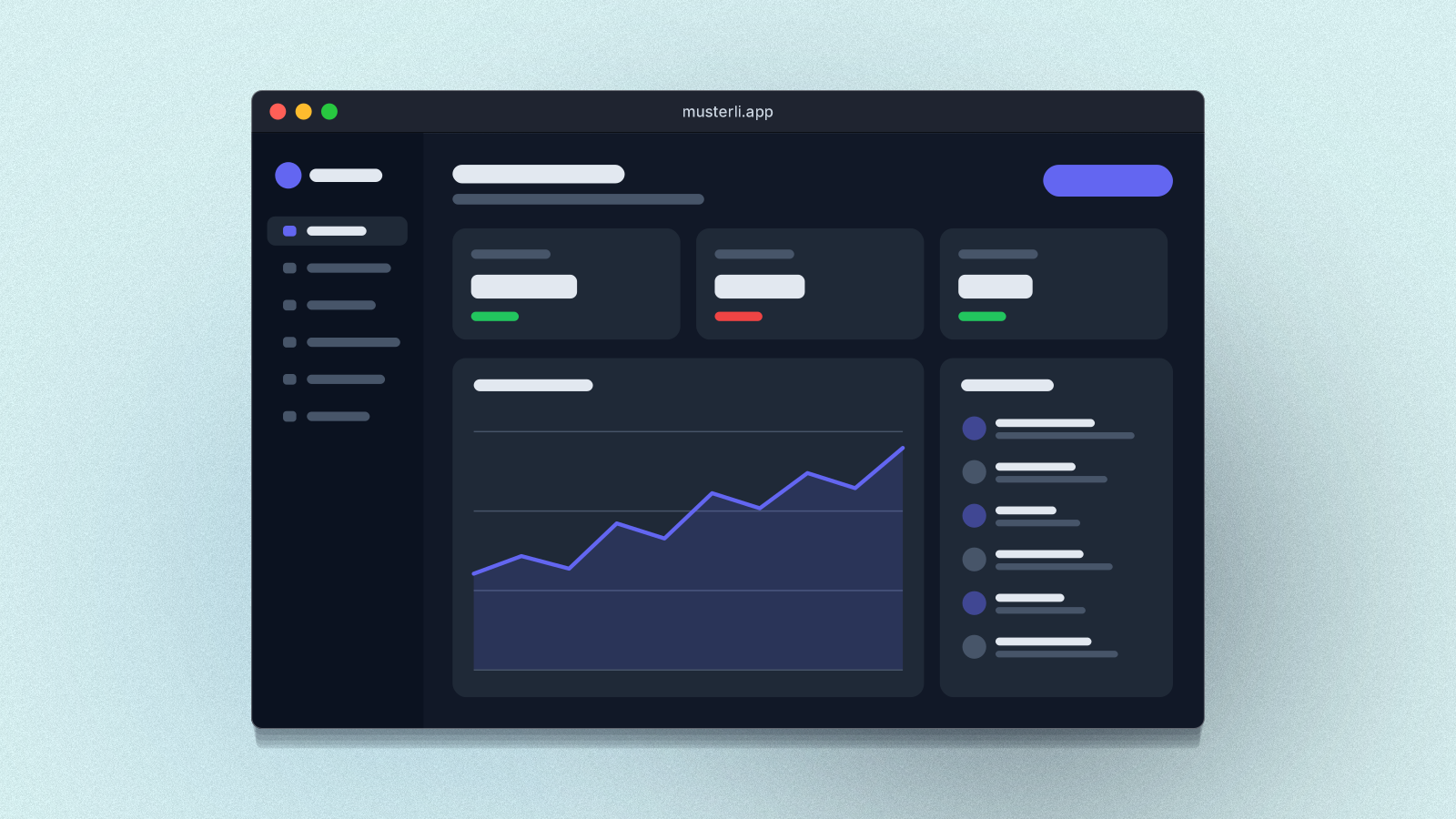
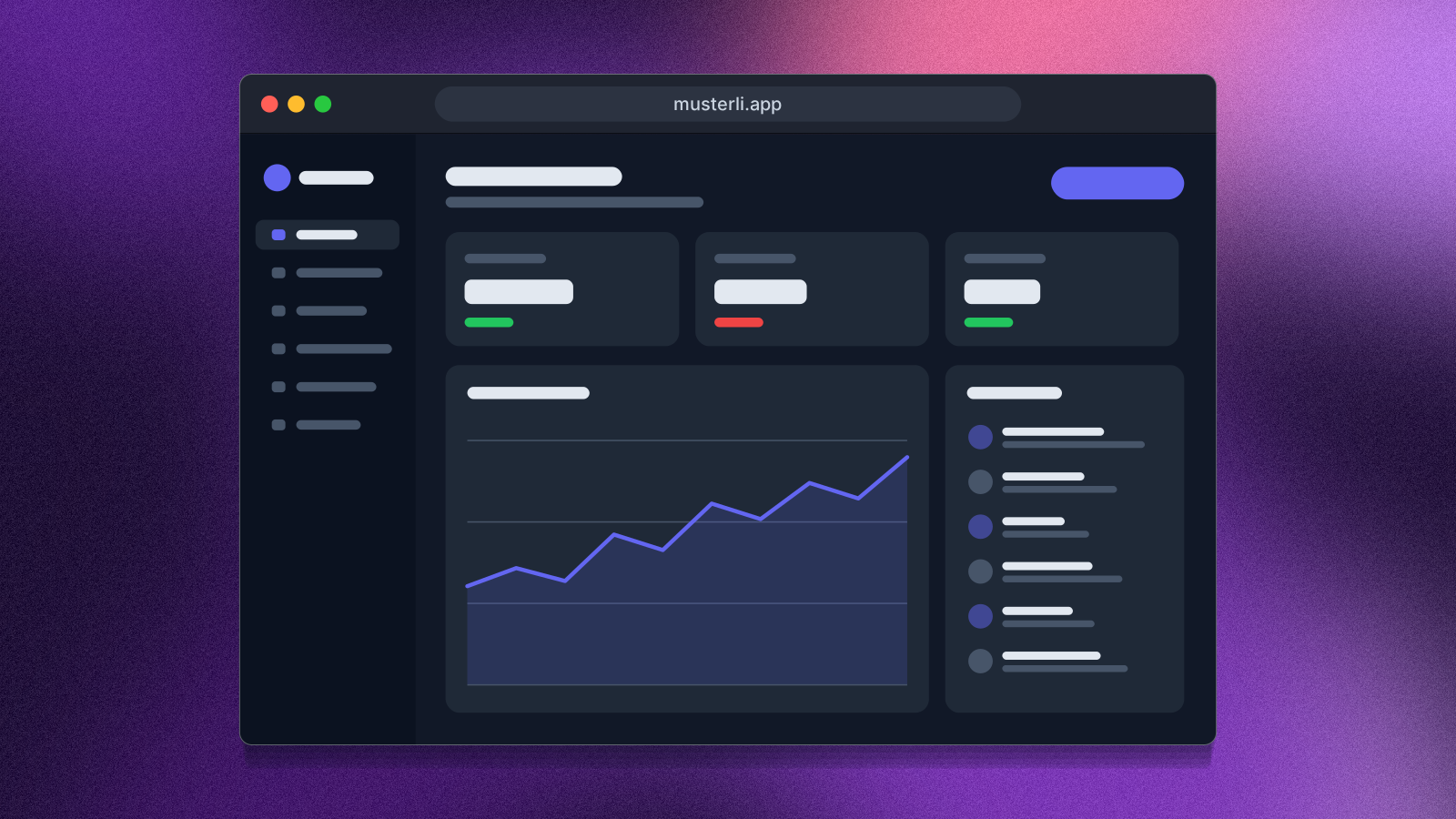
A screenshot beautifier turns a plain screen capture into a polished image. The picture sits on a background and gets padding, rounded corners, a soft shadow and, if you like, a window or browser bar with an address. Screenshots in documentation, blog posts, on social media and on Product Hunt look clean and consistent. As a website mockup it shows your page on a laptop, monitor, tablet or phone, and as a responsive mockup on several devices at once.
Drop your screenshot into the editor, choose a file or paste it with Ctrl+V. Then pick a frame, padding, corners, shadow and a background: a color, a gradient or a Musterli background such as mesh, blurry or waves. Space rolls a new background and keeps your picture. Export as PNG, JPG, WebP or SVG, or copy the result straight to the clipboard. For a mockup, pick a laptop, monitor, tablet, phone or a responsive set under Device and type the address for the browser bar.
Try the Screenshot Beautifier nowLinear, radial and conic gradients with smooth OKLCH transitions. Export as CSS, SVG or image.
Open in editor
Over 30 pure CSS patterns: dots, grids, stripes, waves and geometric shapes. Export as CSS, Tailwind, SVG or image.
Open in editor
Organic shapes in one click, filled, outlined or with a gradient. Export as SVG or image.
Open in editor
Layered waves for sections, headers and backgrounds. Export as SVG, CSS or image.
Open in editor
Several blobs at corners and edges that adapt to any canvas size. Export as SVG or image.
Open in editor
Hand-drawn looking squiggles, spirals, stars and zigzags as a background. Export as SVG or image.
Open in editor