Noise and Grain
Grainy textures and backgrounds with fine noise over a color or gradient. Export as PNG, JPG, WebP or SVG.
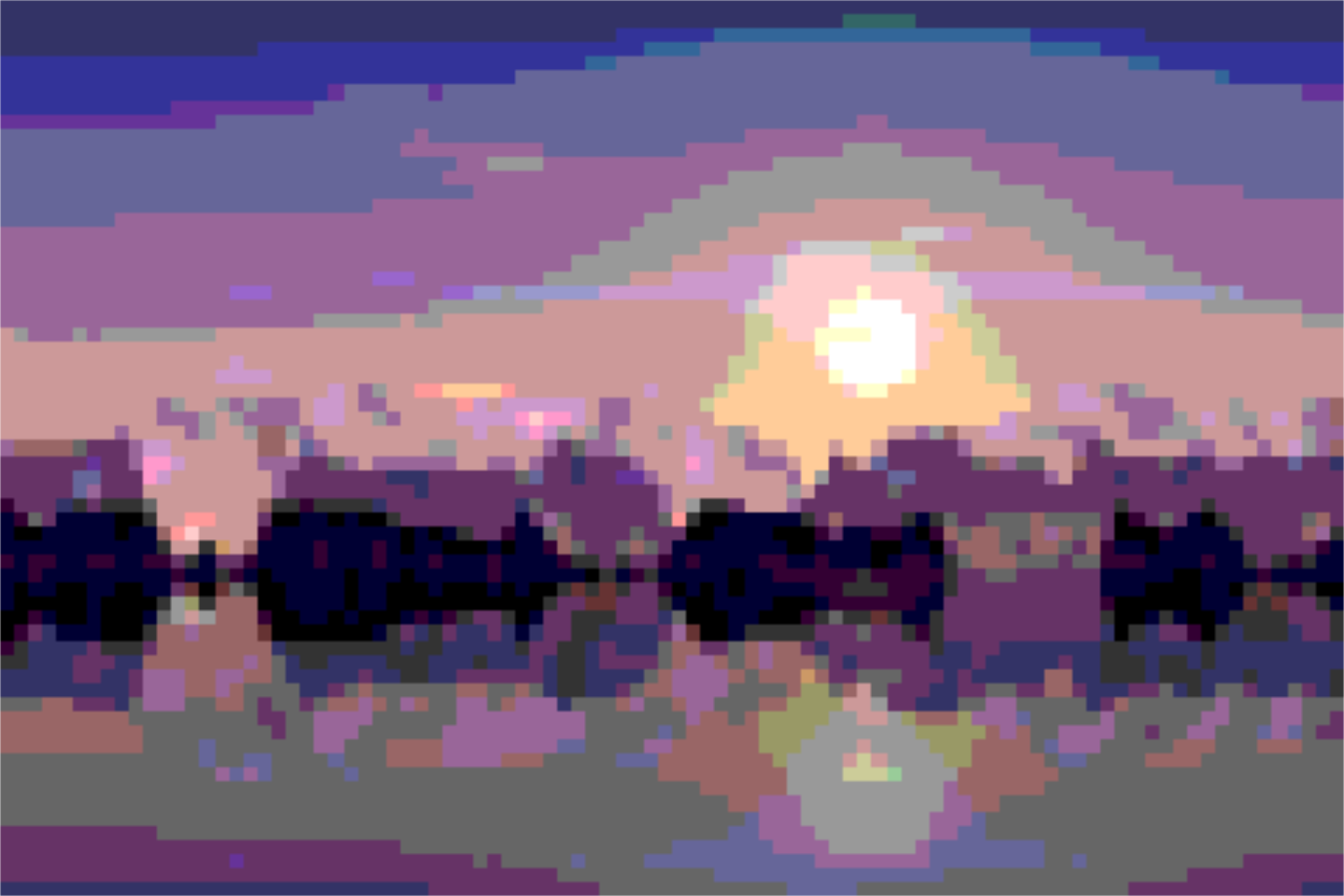
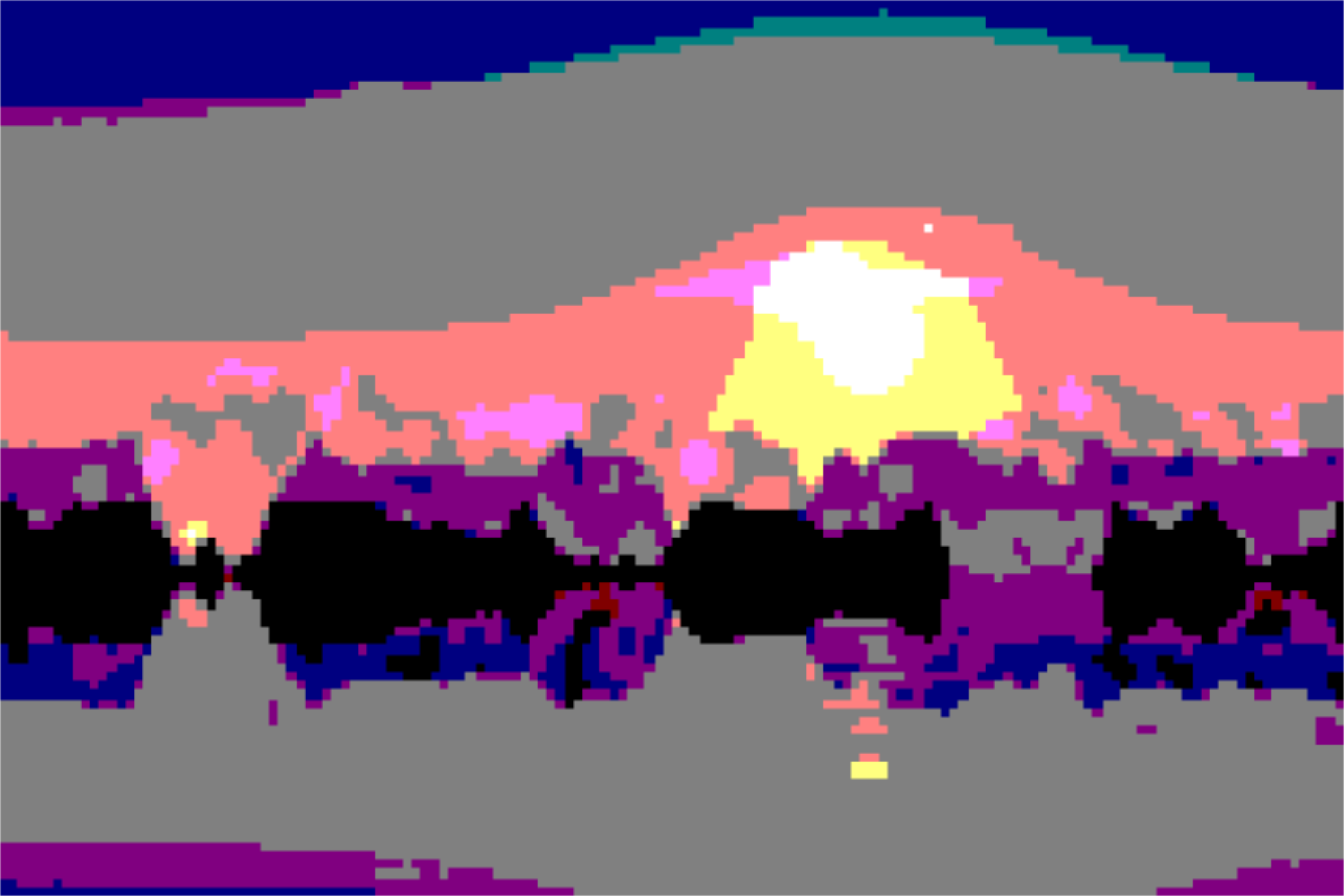
Open in editorTurn your photo into big pixels and few colors: block size, color levels or your own palette, also as SVG. Your picture stays on your device.
Open the generatorRuns right in your browser. Your graphics are made on your device.
Pick a preset and it opens right in the editor, ready to adjust.
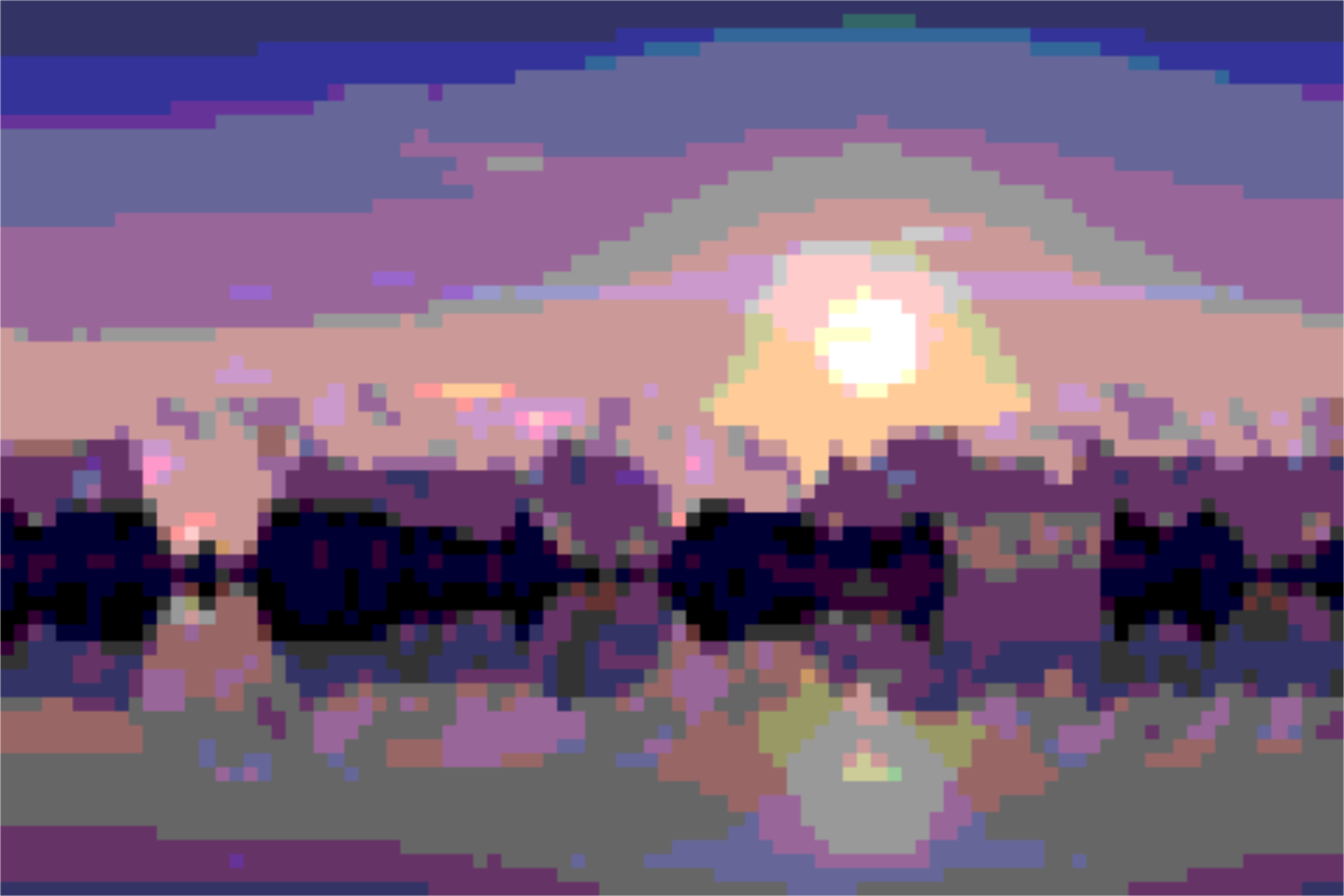
Pixelating merges a picture into large blocks: each block shows the mean of all the pixels it covers. Posterizing then reduces the colors, either to a few evenly spaced levels per color channel or to a fixed palette. Together they create the look of pixel art, old video games and mosaics; on its own, pixelating hides faces and details.
Big pixels in few colors recall old game consoles. Ideal for sprites, backgrounds and retro projects.
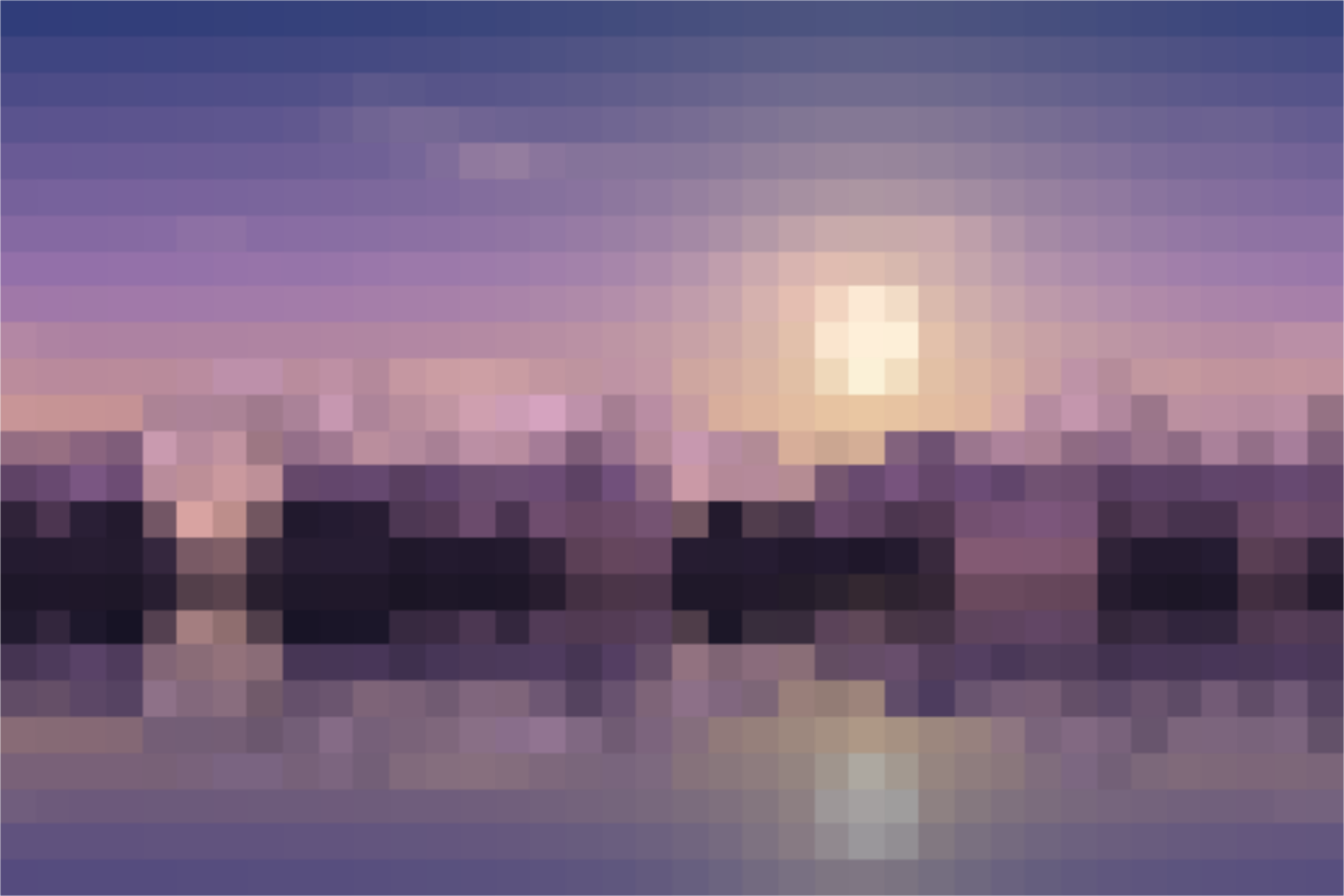
Big pixels hide faces and details while colors and mood stay. The photo never leaves your browser.
The SVG export gives you every block as a vector shape, a starting point for mosaics, fuse beads or cross-stitch.
Upload a photo or try the presets on the sample picture. Choose the pixel size: 1 keeps the resolution, larger values give coarser blocks. Under Colors, keep the original colors, reduce them to levels per channel, or give each block the closest color of your palette. Brightness, contrast and gamma adjust the tones. Space rolls colors and levels, or the pixel size for original colors. Export as PNG, JPG, WebP or SVG.
Try the Pixelate Image nowGrainy textures and backgrounds with fine noise over a color or gradient. Export as PNG, JPG, WebP or SVG.
Open in editor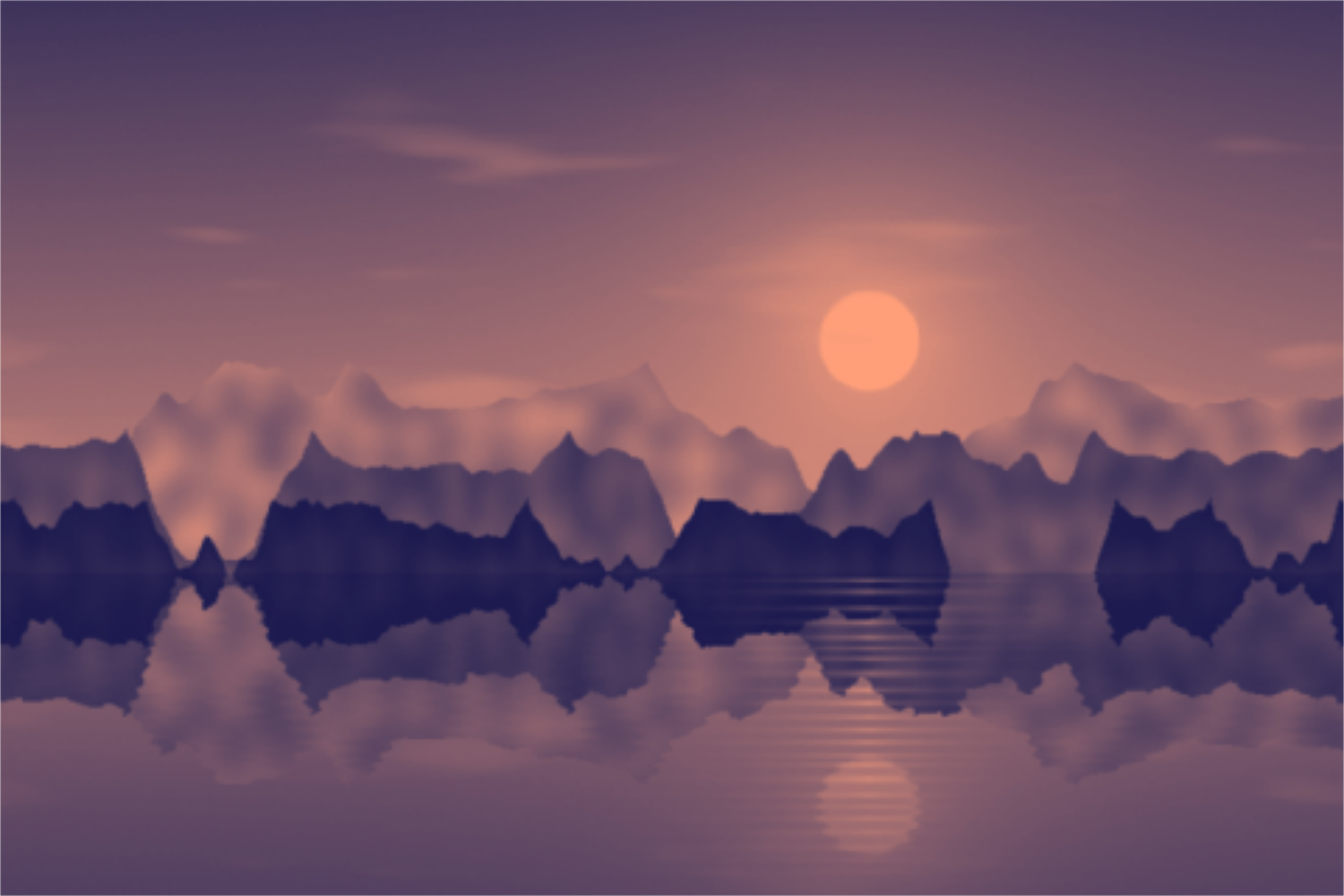
Tint photos in two, three or more colors: duotone, tritone and gradient map with a tone curve and grain. Your picture stays on your device.
Open in editor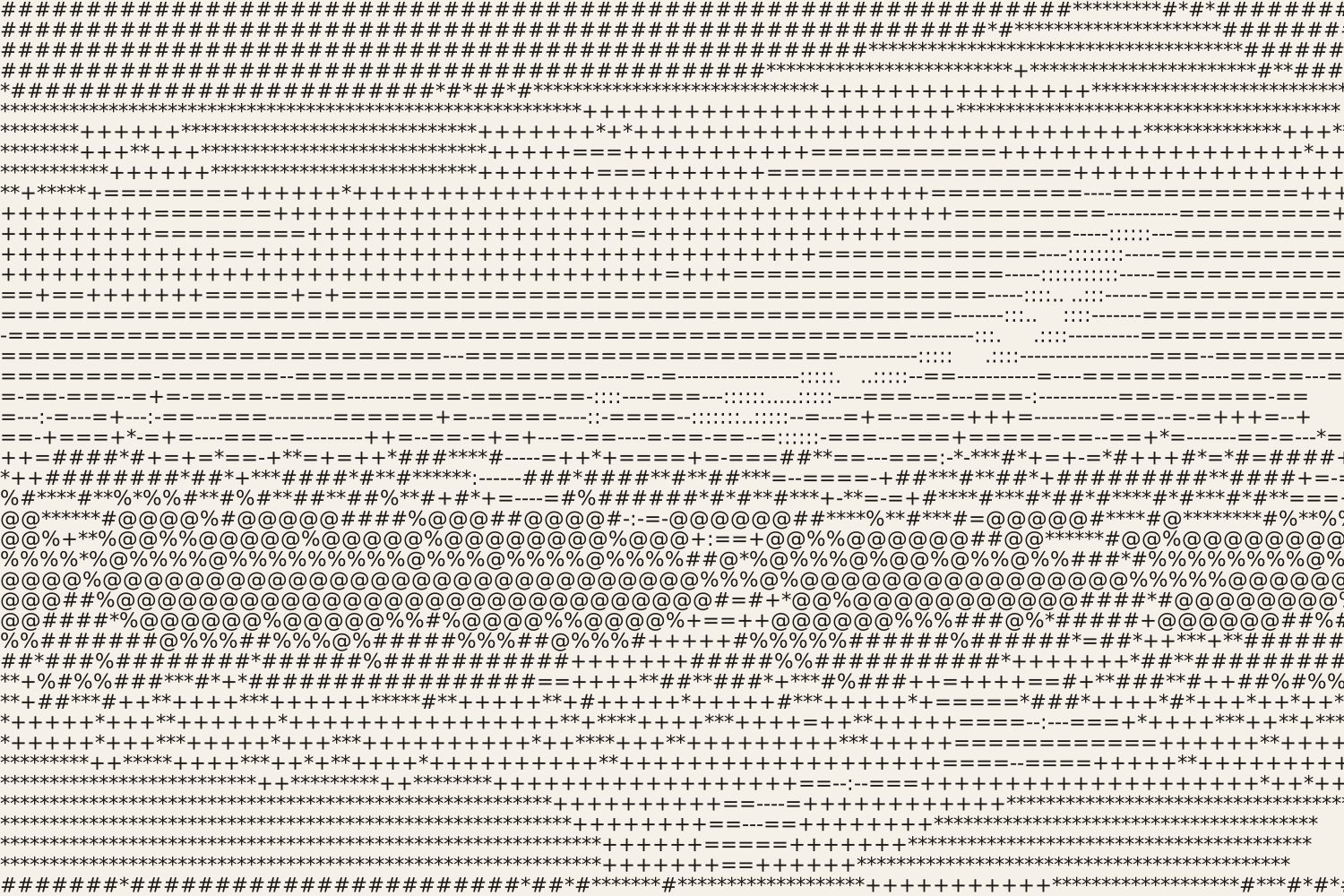
Turn photos into ASCII art from characters, colored characters, an LED dot matrix or braille. Export as SVG, PNG, text or HTML.
Open in editor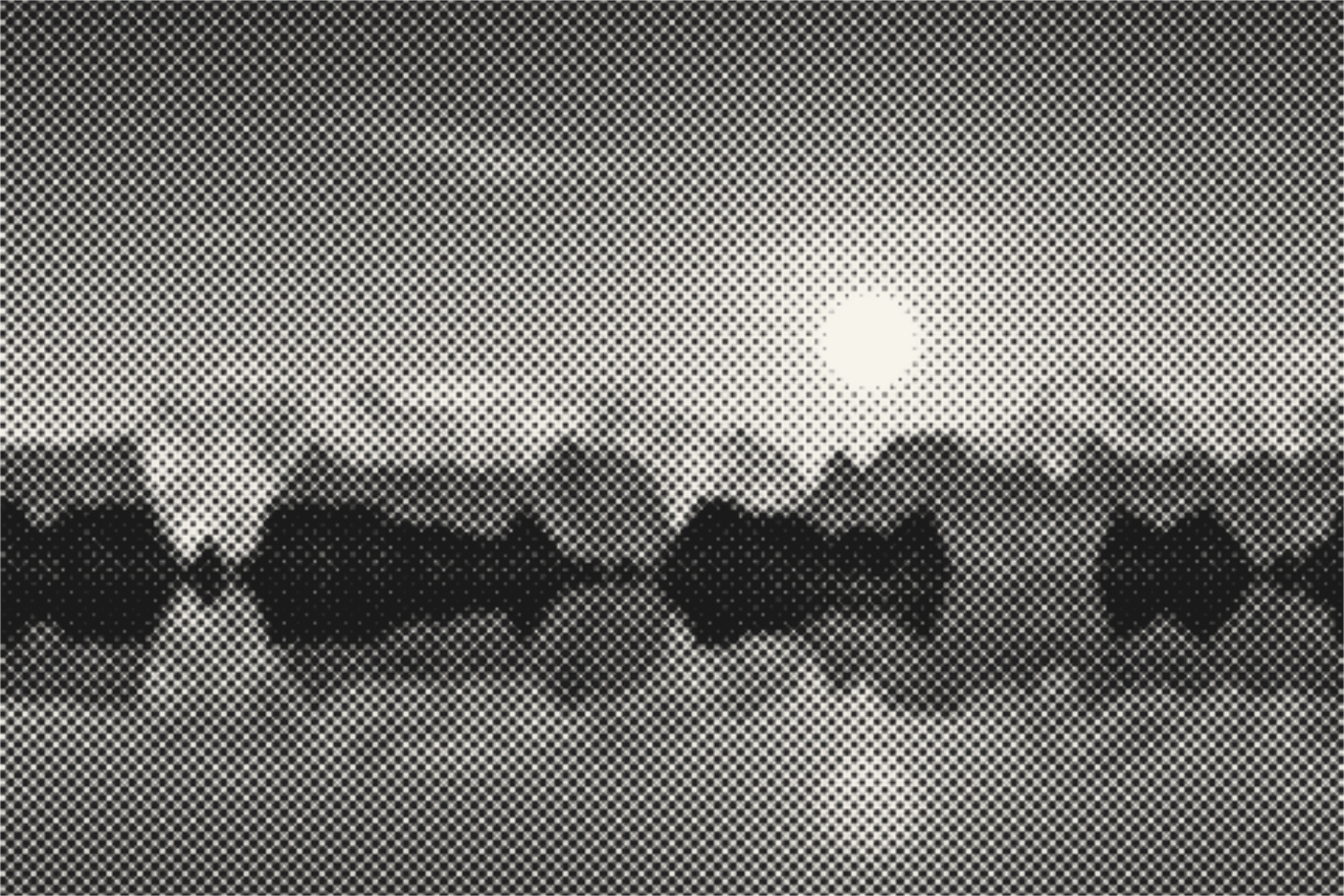
Turn photos into halftone dots, lines, squares or diamonds like newspaper print. With screen angle, cell size, two colors and SVG export. Your picture stays on your device.
Open in editor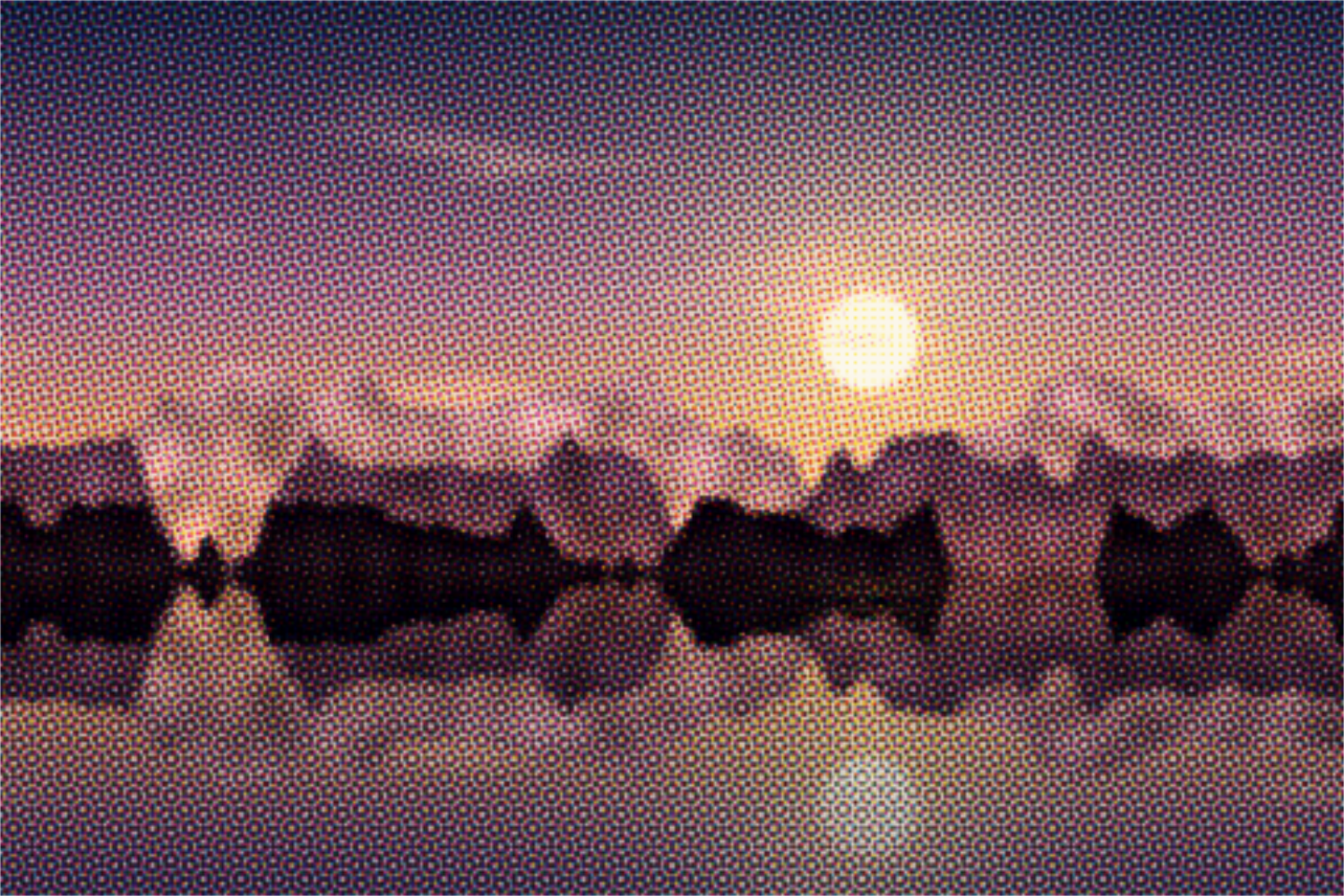
Separate photos into cyan, magenta, yellow and black with a screen angle per ink, like offset printing. With misregistration and SVG export. Your picture stays on your device.
Open in editor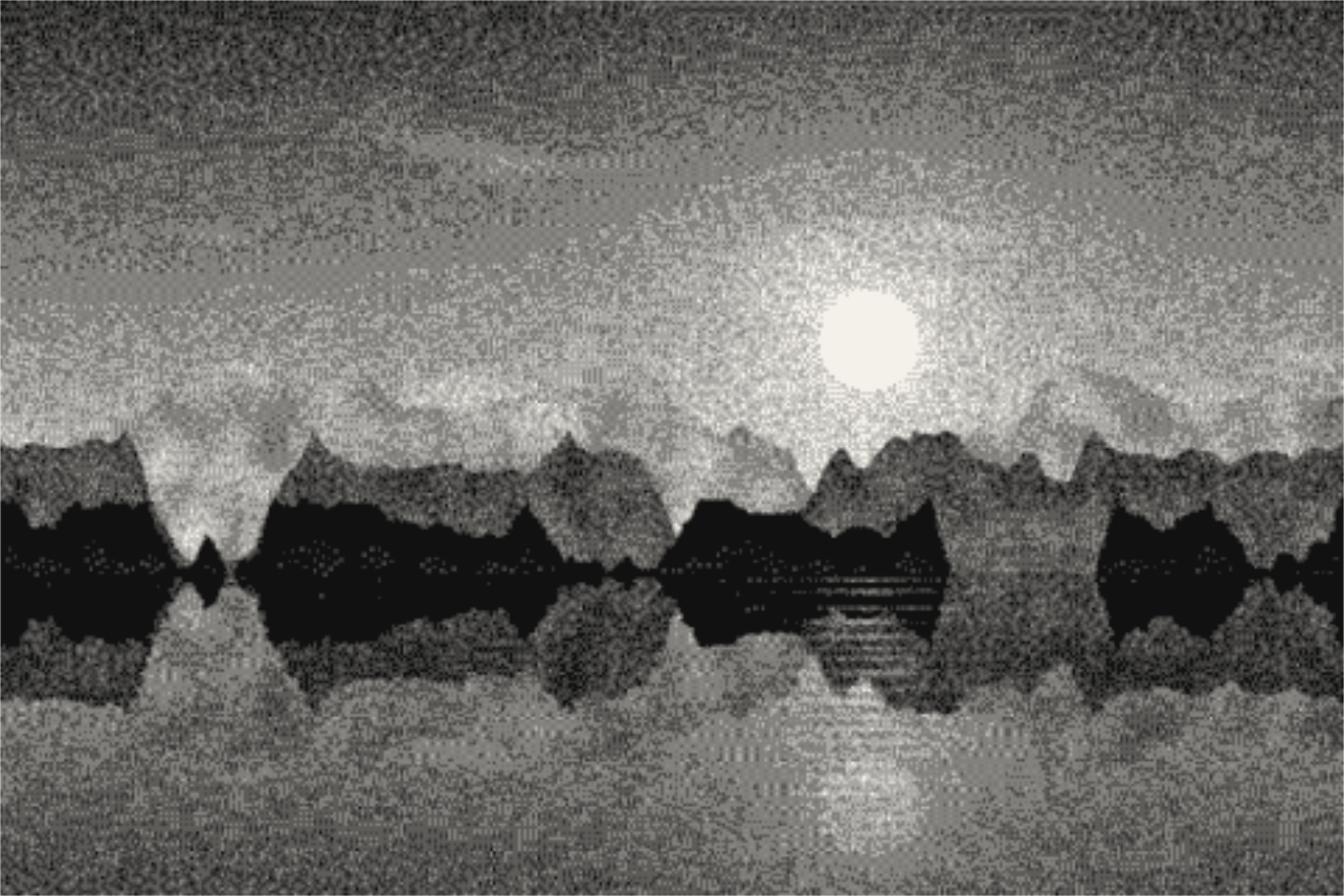
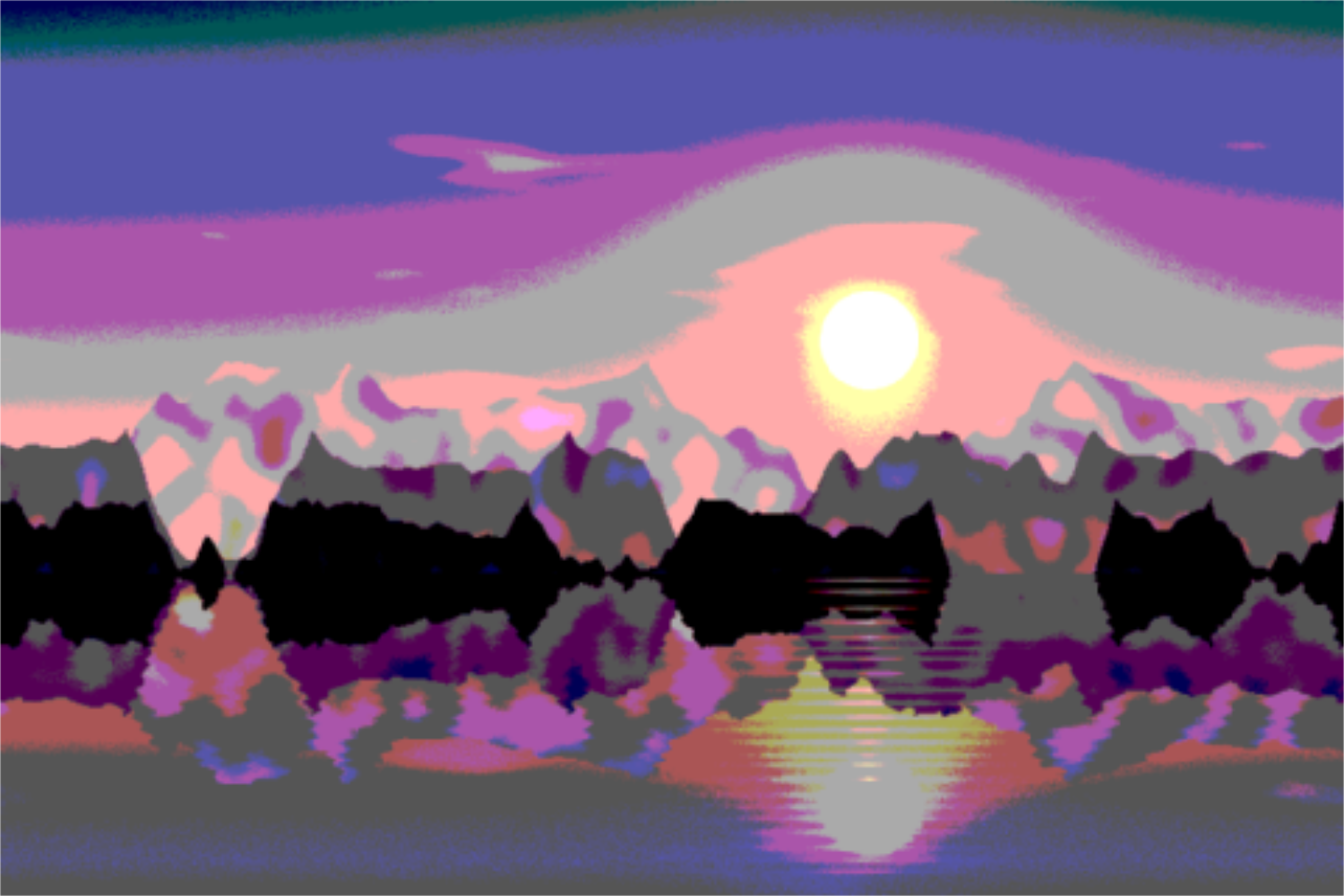
Reduce photos to a few colors with Floyd-Steinberg, Atkinson, Stucki or Bayer dithering, in 1-bit, grayscale, retro palettes or your own colors. Your picture stays on your device.
Open in editor